

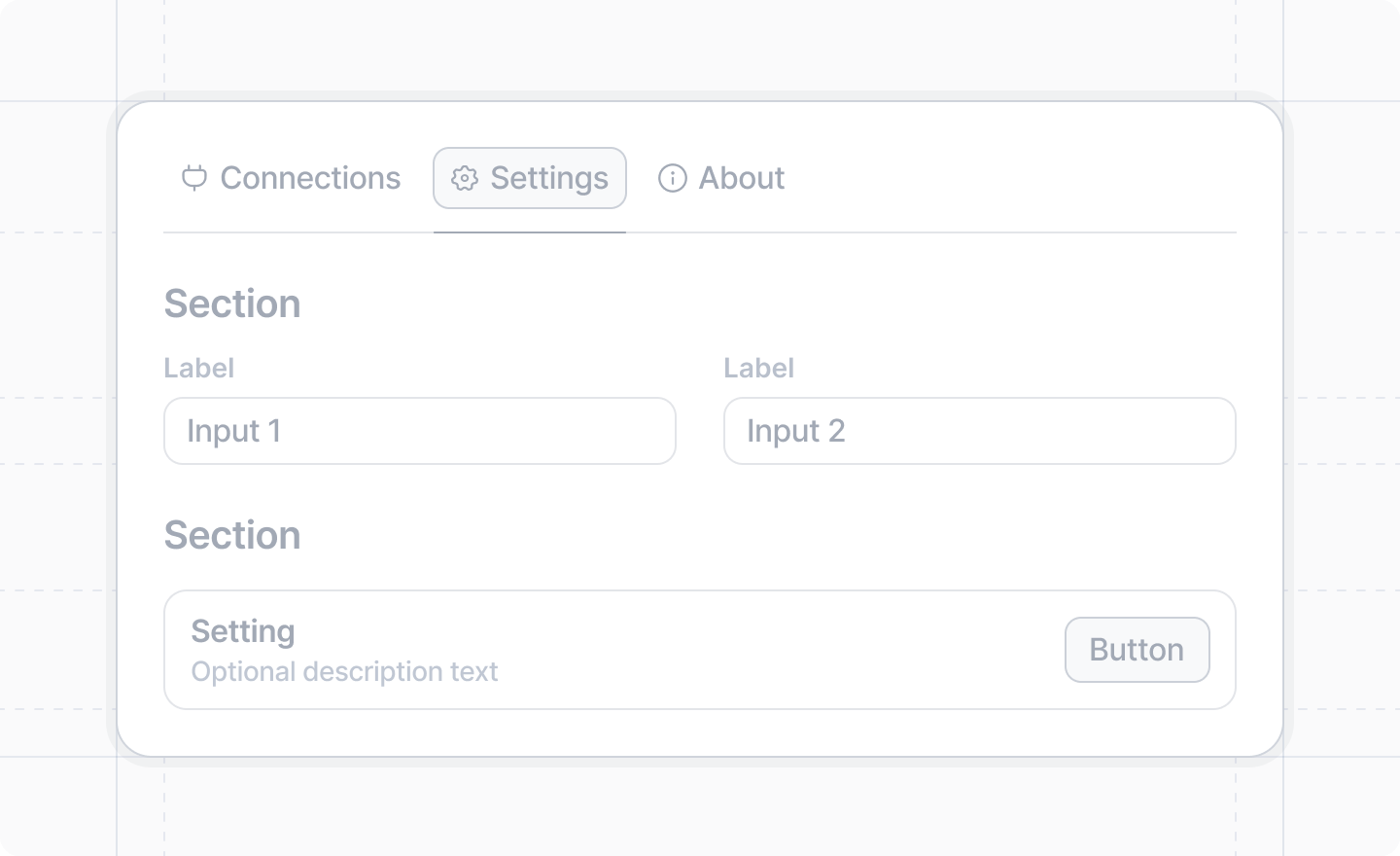
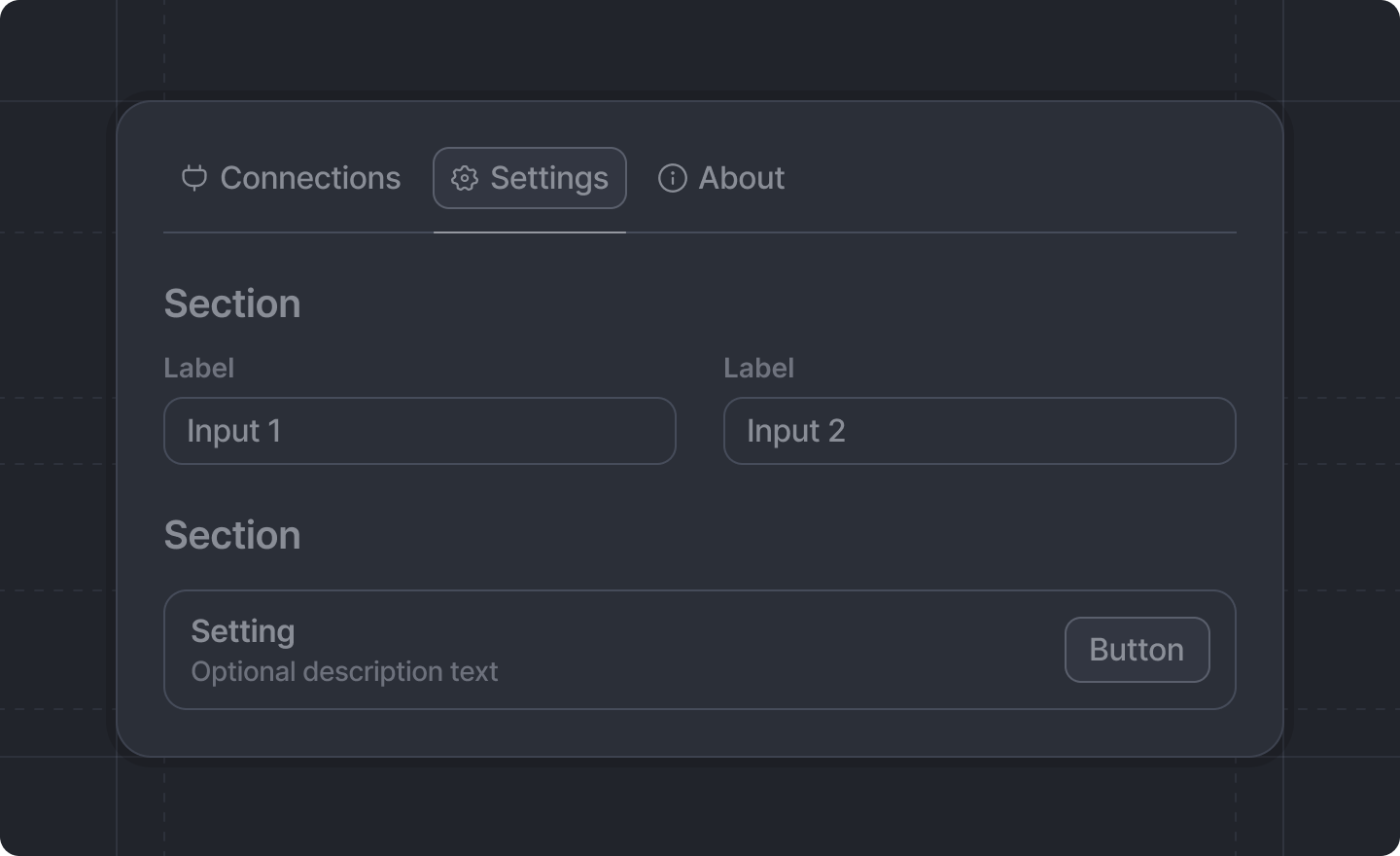
 Apps may configure settings which let users customize the app at the workspace level.
Settings live in
Apps may configure settings which let users customize the app at the workspace level.
Settings live in src/app/settings/ and consist of a schema defined with Settings.defineWorkspaceSchema and a page defined with Settings.defineWorkspacePage, displayed with form components from Settings.useForm.
Unlike regular forms in dialogs, workspace settings forms automatically save changes and don’t require
a submit button or onSubmit handler. Each field saves individually:
- Text inputs and number inputs save
onBlur(when the user leaves the field) - Toggles, checkboxes, and comboboxes save
onChange(immediately when changed)
Only workspace admins can edit workspace settings. However, all workspace members can view the
settings.
Example: Basic workspace settings
First, define your settings schema as the default export ofsrc/app/settings/schema.ts:
src/app/settings/schema.ts
src/app/settings/page.tsx:
src/app/settings/page.tsx
- Define a schema with
Settings.defineWorkspaceSchemaatsrc/app/settings/schema.ts - Define a page with
Settings.defineWorkspacePageatsrc/app/settings/page.tsx - Use
Settings.useForminside the page’s render callback to get form components - Wrap your settings inputs in the
<Form/>and organize with<Section/>components
Validation
Unlike regular forms where validation is defined in the schema, workspace settings validation is specified directly on the input components:src/app/settings/page.tsx
Available components
Settings.useForm returns the form and the components that go in it:
Input components
<TextInput />- String input with validation<NumberInput />- Numeric input with min/max<Toggle />- Boolean toggle switch<Checkbox />- Boolean checkbox<Combobox />- Dropdown selection<AttioUserCombobox />- Select workspace users<RadioGroup />- Single choice from a list<RichTextInput />- Rich text input
Layout components
<Section />- Group settings into sections<InputGroup />- Group inputs horizontally<Fieldset />- Group a radio group or checkboxes under a legend
Utility components
<Button />- Action buttons for additional functionality<WithState />- Access form state for conditional rendering
Other components
Otherattio/client components can sit next to the settings inputs, inside a Section. A few aren’t supported on settings pages; see supported components.
src/app/settings/page.tsx
Accessing settings in your app
Once your workspace settings are configured, you can access them in different ways. Every setting value isnull until it has been set.
With real-time updates
In React components, use theSettings.useSettings hook to get settings that automatically update when changed:
src/app/extensions/team-widget/team-widget-content.tsx
Programmatically
UseSettings.getSettings and Settings.setSettings to read and write settings. They’re available from both attio/client (for use in extensions, dialogs, etc.) and attio/server (for use in server functions, webhook handlers, and event handlers):
In client code:
src/app/extensions/sync-record/extension.tsx
src/sync-data.server.ts
Related documentation
- Workspace settings overview
Settings.defineWorkspaceSchema()- Define the structure and types of your settingsSettings.defineWorkspacePage()- Define the settings pageSettings.useForm()- Build the settings formSettings.useSettings()- Hook for accessing settings in React componentsSettings.getSettings()- Get settings in client or server codeSettings.setSettings()- Set a setting in client or server code- Settings Components